

HTML Editor
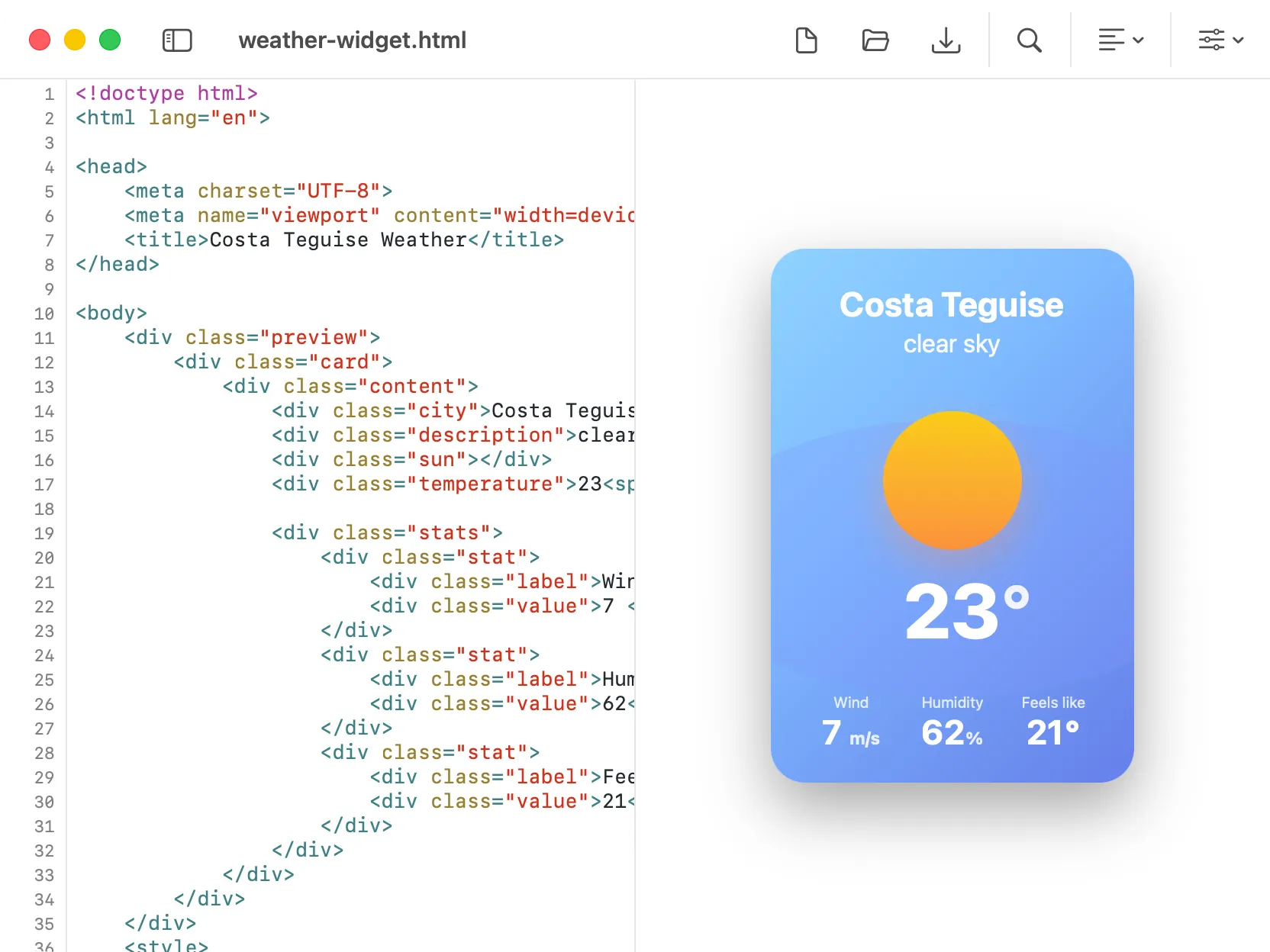
DevKnife’s HTML Editor gives you a focused workspace for drafting, editing, and cleaning up HTML. It combines a syntax-highlighted editor with an optional live preview, so you can write markup and check the rendered result in the same tool.
How It Works
Section titled “How It Works”The tool can use a split view: the editor is on the left and the rendered preview is on the right. You can hide the preview when you want more room for code, then turn it back on when you need to check the rendered output.
When you open or save an HTML file, DevKnife tracks the file path and uses the file’s folder as the preview base URL, which helps relative assets resolve while you work.
Using The Tool
Section titled “Using The Tool”File Tools
Section titled “File Tools”- New Document: Start from a small HTML template.
- Open: Load an existing
.htmlor.htmfile. - Save: Save changes back to the current file.
- Save As: Save the current draft as a new
.htmlfile.
Editing Tools
Section titled “Editing Tools”- Syntax Highlighting: Read and edit HTML with code highlighting.
- Auto Indent: Keep new lines aligned while writing nested markup.
- Find: Search within the current HTML document and jump between matches.
- Live Preview: Render the current HTML beside the editor when the preview panel is enabled.
View Options
Section titled “View Options”- Preview Panel: Show or hide the rendered HTML preview.
- Word Wrap: Turn wrapping on for long lines, or off when you prefer horizontal scrolling.
- Line Numbers: Show or hide line numbers in the editor.
Formatting Tools
Section titled “Formatting Tools”- Format: Reflow HTML into a more readable structure, including CSS inside
<style>blocks. - Minify: Remove unnecessary whitespace and comments to make the HTML smaller.
The HTML Editor is useful for quick prototypes, static snippets, email markup, documentation pages, and small HTML files you want to inspect or clean up.