

Color Palettes
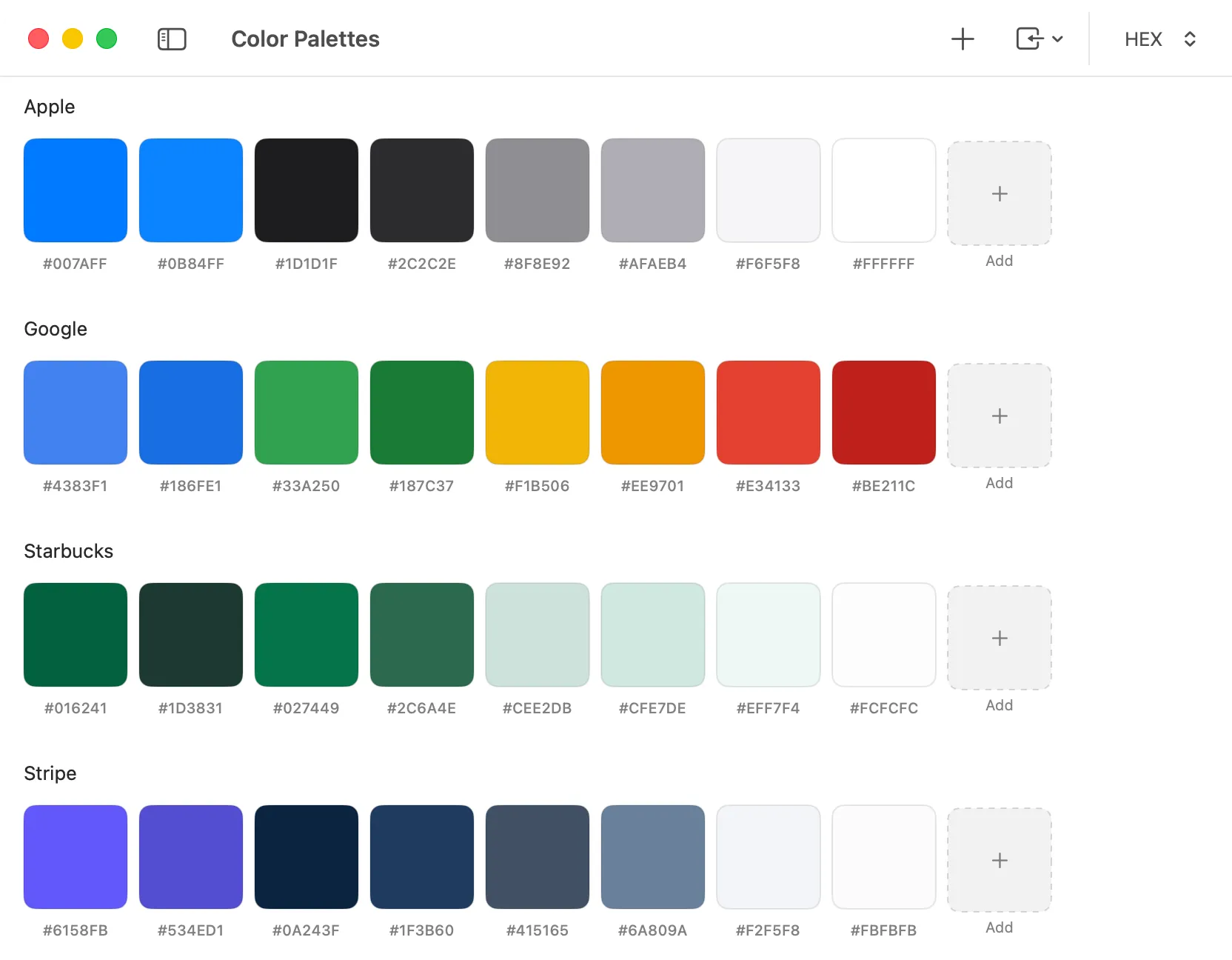
The Color Palettes tool helps you collect, name, and reuse colors across projects. Create multiple palettes, drag to reorder, and export your colors in the formats your workflow needs.
Using The Tool
Section titled “Using The Tool”The Color Palettes workflow is designed around quick capture, clean organization, and fast export. Create a palette, drop in colors, name them, and export in the format your project needs.
Creating Palettes
Section titled “Creating Palettes”Click Add Palette in the toolbar and enter a name.
New palettes are added to the top of the list so your latest work stays visible.
Adding Colors
Section titled “Adding Colors”Use Add Color (palette menu or the + button at the end of the swatch list) to open the macOS color panel and append a new swatch.
Pick Color in the palette menu opens the system color picker to sample any on-screen color.
Each swatch shows the current display format and can be clicked to copy that value.
Display Formats
Section titled “Display Formats”Use the format picker in the toolbar to switch how swatches are displayed and copied:
- HEX
- RGB
- HSB
- HSL
- CMYK
- LAB
- Name
Managing Colors
Section titled “Managing Colors”Right-click a swatch to open its menu and choose:
- Copy [Format] to copy the value in the current display format
- Rename to give the color a friendly name
- Edit to tweak the color in the system color panel
- Delete to remove it from the palette
Reordering
Section titled “Reordering”Drag colors to rearrange them within a palette.
Drag palette headers to reorder palettes in the list.
Key Features
Section titled “Key Features”- Multiple palettes – create and manage many palettes in one place
- Named colors – auto-named colors with the option to rename any color
- Drag and drop – reorder colors and palettes visually
- Copy formats – copy as CSS variables, SASS variables, SwiftUI colors, arrays, or Figma/Sketch CSV
- Export – export a palette as a GIMP Palette (
.gpl) or Adobe Swatch Exchange (.ase) file - Import – import
.gpland.asepalettes from other tools
Copy & Export Formats
Section titled “Copy & Export Formats”From each palette’s menu you can copy or export in several formats:
- Copy as CSS – CSS custom properties
- Copy as SASS – SASS variables
- Copy as SwiftUI –
Color(red:..., green:..., blue:...)constants - Copy as Array – hex array for quick use in code
- Copy as Figma/Sketch – CSV with name and hex
- Export as ASE – save an
.asepalette file - Export as GPL – save a
.gplpalette file
Example Outputs
Section titled “Example Outputs”Copy as CSS
--island-mango: #ff0000;--sea-foam: #00ff00;Copy as SASS
$island-mango: #ff0000;$sea-foam: #00ff00;Copy as SwiftUI
extension Color { static let islandMango = Color(red: 1.000, green: 0.000, blue: 0.000) static let seaFoam = Color(red: 0.000, green: 1.000, blue: 0.000)}Copy as Array
["#ff0000", "#00ff00"]Copy as Figma/Sketch
"Island Mango","#ff0000""Sea Foam","#00ff00"Importing Palettes
Section titled “Importing Palettes”Use Import Palette in the toolbar to bring in Adobe Swatch Exchange (.ase) or GIMP Palette (.gpl) files. Imported colors keep their original names when available.
Exporting Palettes
Section titled “Exporting Palettes”Choose Export from a palette menu to save as Adobe Swatch Exchange (.ase) or GIMP Palette (.gpl).