

JSON Editor
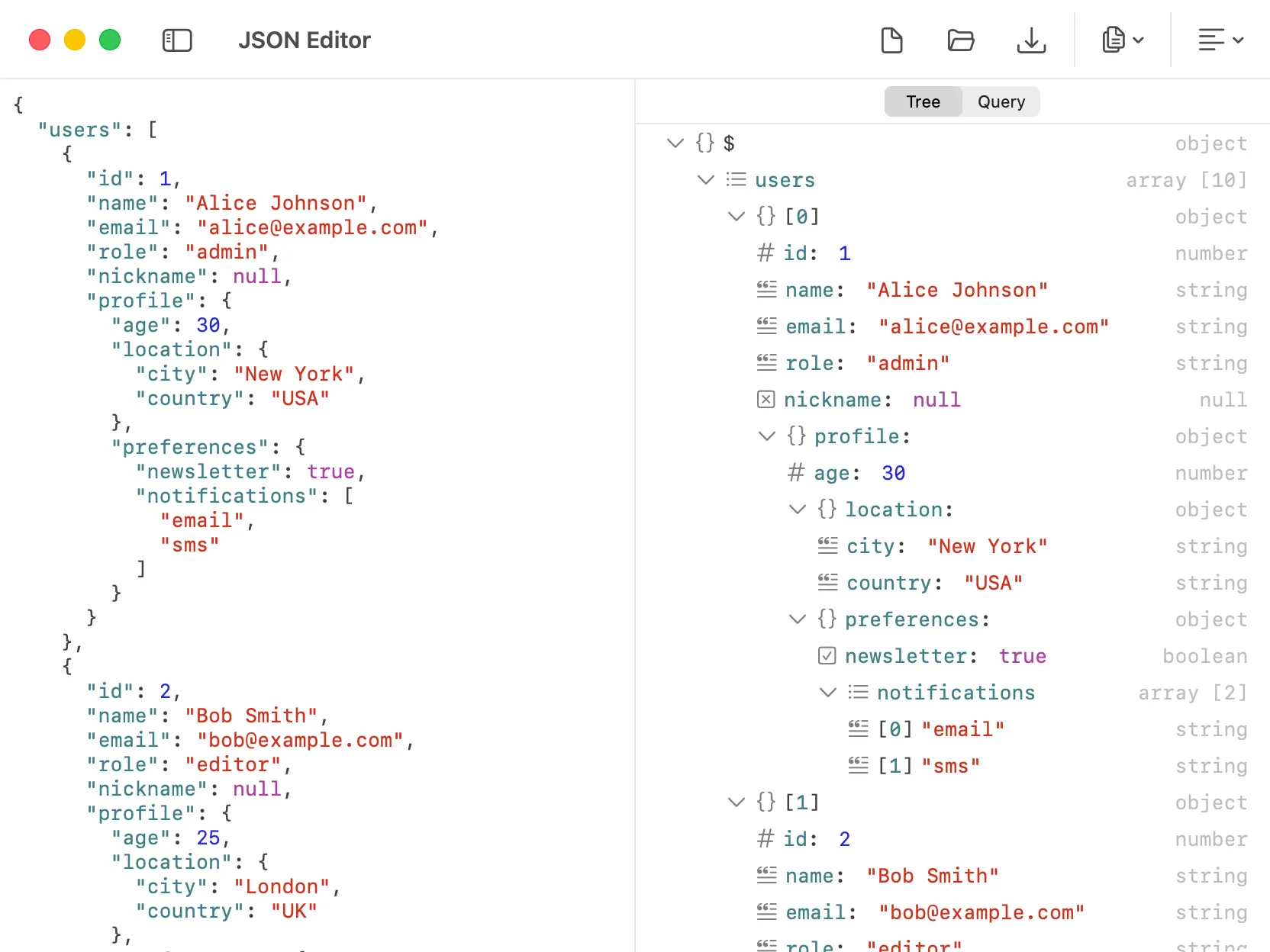
The JSON Editor in DevKnife helps developers work with JSON quickly and comfortably, without relying on online tools. Paste or open a JSON file, format or minify it, inspect the structure in a tree view, and run queries against the current document.
Key Features
Section titled “Key Features”- Formatting options – Pretty, Smart, and Minify. Pretty uses standard indentation, Smart keeps short objects on one line and expands nested structures, and Minify outputs a single line.
- Tree and Query sidebar – switch between a structured tree view of the current document and a dedicated query workspace.
- Tree actions – right-click any node to copy a subtree as JSON, or expand and collapse child nodes.
- Value editor – edit primitive values such as strings, numbers, booleans, and null directly from the tree sidebar.
- JSON query engines – run both JSONPath and JMESPath queries against the current document.
- File operations – open JSON files directly from your system and save your edits back to disk. The title bar shows a dot indicator when you have unsaved changes.
- Automatic repair – if your JSON is invalid, DevKnife can attempt to fix common issues and restore valid JSON.
Tree View and Value Editing
Section titled “Tree View and Value Editing”The Tree tab gives you a structured view of the current JSON document, which is often much easier to navigate than raw text alone.
From the tree view you can:
- browse nested objects and arrays
- expand or collapse nodes
- copy a subtree as JSON from the context menu
- inspect the selected node’s path and type
- edit primitive values directly from the value editor
This makes the JSON Editor especially useful for large or deeply nested payloads where small manual edits in raw text can be tedious.
JSON Query
Section titled “JSON Query”The Query tab gives you a dedicated place to run queries against the current JSON document without changing the source input.
DevKnife supports two query engines:
- JSONPath for match-oriented traversal and filtering
- JMESPath for projection and transformation-style queries
The selected engine and query text are remembered per window, so you can switch contexts without losing your work.
JSON Query with JSONPath
Section titled “JSON Query with JSONPath”JSONPath is a query language for JSON, similar to XPath for XML. It lets you extract, filter, and navigate parts of a JSON document using concise expressions.
Basic Syntax
Section titled “Basic Syntax”$– the root element@– the current element.or[]– child operator (for example$.store.book)..– recursive descent (for example$..author)
Filters and Expressions
Section titled “Filters and Expressions”Filters allow you to select elements based on conditions using the ?() syntax. Inside the parentheses, you can use comparison operators such as <, >, ==, and != to build expressions.
Example:
$.store.book[?(@.price < 10)] – selects all books in the store with a price less than 10.
Wildcards
Section titled “Wildcards”The * wildcard matches all elements at a given level.
Example:
$.store.book[*].title – selects the title of every book in the store.
Slices
Section titled “Slices”Slices allow you to select a range of elements using the [start:end:step] syntax.
Examples:
$..book[0,1] – selects the first two books.
$..book[:2] – a shortcut that also selects the first two books.
For a more in-depth tutorial on JSONPath, see the original article by Stefan Goessner.
JSON Query with JMESPath
Section titled “JSON Query with JMESPath”JMESPath is a JSON query language designed for selecting and transforming data. It is especially useful when you want to reshape a result instead of only matching nodes.
Examples:
items[*].name– project thenamefield from every itemitems[?price > \50`]` – filter items by price{name: name, price: price}– build a new object from selected fieldssort_by(items, &price)– sort items by a field
JMESPath results are shown directly in the query output panel as JSON.
For a practical introduction to JMESPath, see the JMESPath tutorial.
Privacy
Section titled “Privacy”The JSON Editor in DevKnife works entirely offline on your Mac. No data ever leaves your computer, making it a secure choice when working with sensitive API responses, configuration files, or private datasets.