

SVG Editor
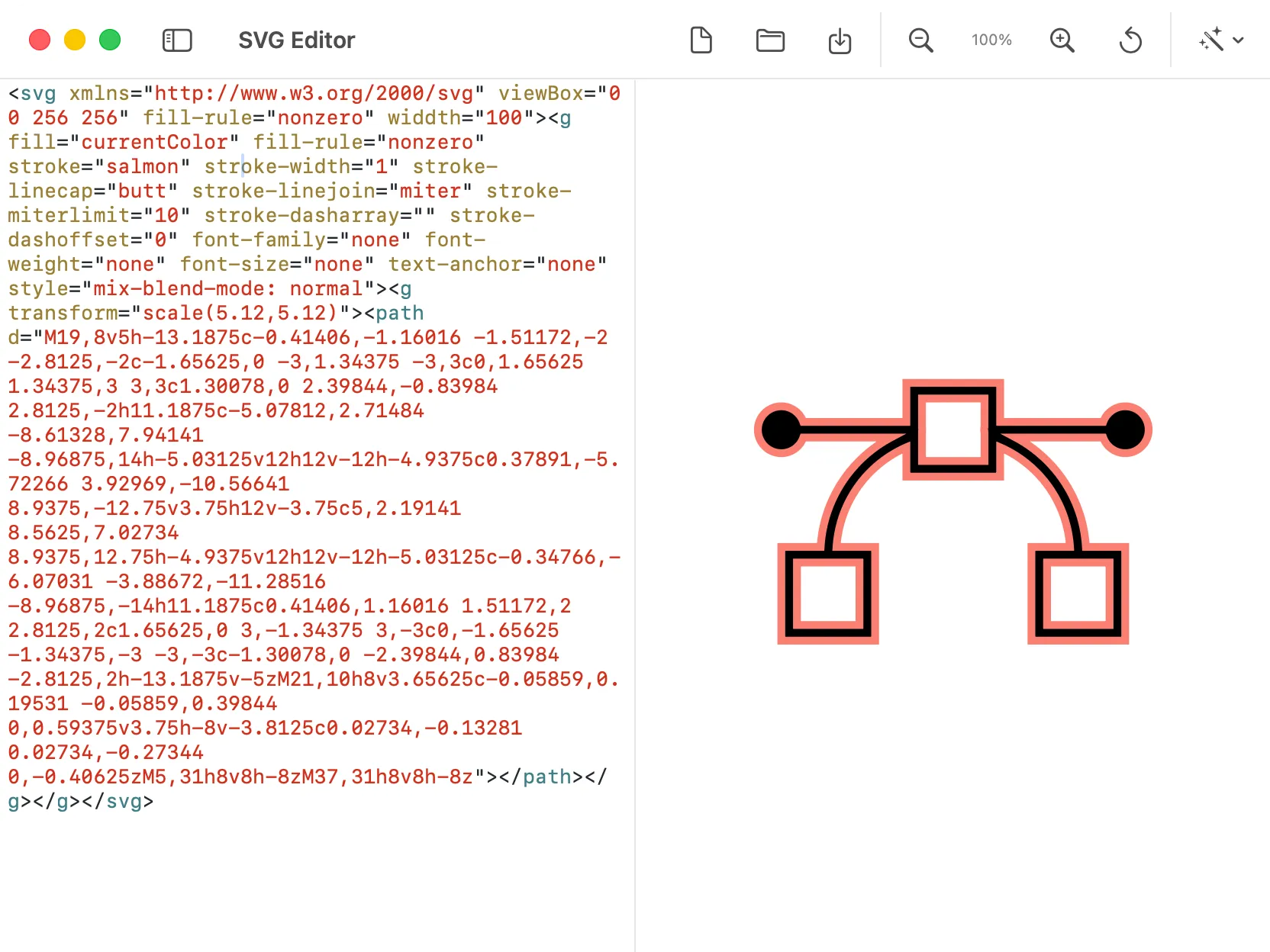
DevKnife’s SVG Editor is built for developers who need to tweak vector graphics at the source level. It combines a syntax-highlighted code editor with a real-time preview, allowing you to adjust paths, colors, and dimensions without opening heavy design software.
Using The Tool
Section titled “Using The Tool”The SVG Editor is designed to simplify working with SVG code through its intuitive interface and helpful actions.
Split Screen View
Section titled “Split Screen View”- Code Area: On the left, you’ll find a text editor that shows your SVG code in different colors to make it easy to read and change.
- Live Preview: The right side shows your SVG picture changing instantly as you type. You can zoom in and out or pan around the preview to inspect details in complex vector graphics.
File Tools
Section titled “File Tools”You can easily handle your SVG files:
- New: Start a fresh, empty SVG file.
- Open: Load an SVG file you already have.
- Save: Save the changes you made to your SVG file.
Quick Actions
Section titled “Quick Actions”These tools help you make your SVG code better and cleaner:
- Make Code Tidy: Automatically arranges your SVG code so it’s easier to read.
- Make File Smaller: Shrinks your SVG file size by taking out extra spaces and notes, without changing how it looks.
- Remove Size Info: Takes out the
widthandheightsettings from your SVG, which can make it fit better in different places. - Use
currentColor: Changes the fill and outline colors tocurrentColor, so you can control the SVG’s color with your website’s CSS code. - Clean Up Extra Info: Removes hidden data and information from other editing programs to make the file even smaller.
How to Save or Share
Section titled “How to Save or Share”When your SVG is ready, you can get it in a few ways:
- Copy as Data URI: Copies your SVG code in a special format that you can paste directly into your website’s code (HTML or CSS).
- Save as Picture (PNG): Turns your SVG into a regular image file (PNG).