 Simon
Simon
·
Guide How to Convert a Unix Timestamp on Mac
Convert Unix timestamps to readable dates on macOS using the Terminal, covering both directions, milliseconds, and UTC, plus a faster native option with DevKnife's Time Inspector.
Read MoreCSV files are simple, but macOS often pushes you toward big spreadsheet apps when you open them.
Numbers and Excel are useful tools. If you need formulas, charts, pivot tables, or a full spreadsheet workflow, they make sense. But a lot of CSV work is much smaller than that.
This guide covers a few lightweight ways to open CSV files on Mac without Excel or Numbers, plus a faster option when you need to edit the file in a proper table.
A CSV file is plain text that stores table-like data. Each row contains values separated by a delimiter, usually a comma:
id,name,email,activeThe first row usually contains column names. Because CSV is plain text, you can open it without a spreadsheet app, although files with many columns quickly become difficult to read or edit as raw text.
Excel and Numbers make sense when you need formulas, charts, sorting, filtering, or analysis. But many CSV tasks are much smaller: checking a few rows, fixing one value, searching for an email address, or renaming a column.
When you only want to glance at a table or fix one cell, waiting for a full spreadsheet app to launch can feel like the slowest part of the job.
Because CSV is plain text, you can open it in a text editor such as TextEdit, VS Code, Sublime Text, Nova, or Zed.
This is the simplest approach when the file is small.
A text editor is good when you want to:
But raw text gets uncomfortable quickly. Once a CSV has many columns, long values, quoted fields, or commas inside cells, it becomes hard to see where one column ends and the next begins.
Editing can also be risky. It is easy to delete a comma, break a quoted value, or change the number of columns in one row without noticing.
Use a text editor when you want to inspect the raw data. It is not the best tool for row and column editing.
If you are comfortable with Terminal, macOS gives you a few quick ways to inspect a CSV file.
Show the first few lines:
head -n 10 data.csvCount the number of lines:
wc -l data.csvSearch for a value:
For very simple CSV files, you can make the columns easier to scan:
column -s, -t < data.csv | less -SThis can be useful for quick checks, but it has a limitation: simple shell commands do not fully understand CSV quoting rules. A value like "Smith, John" contains a comma inside the cell, and naive column formatting can treat that comma as a separator.
Terminal is great for quick inspection and scripting. It is less comfortable when you want to edit cells, paste a range, rename a column, or save a cleaned file without writing a script.
For everyday CSV work, the sweet spot is a dedicated CSV editor: something that opens the file as a table, but does not bring the weight of a full spreadsheet app.
DevKnife includes a CSV Editor for exactly this kind of task. It lets you open, inspect, edit, search, and save CSV files in a clean table view, while keeping the workflow focused on the file itself.
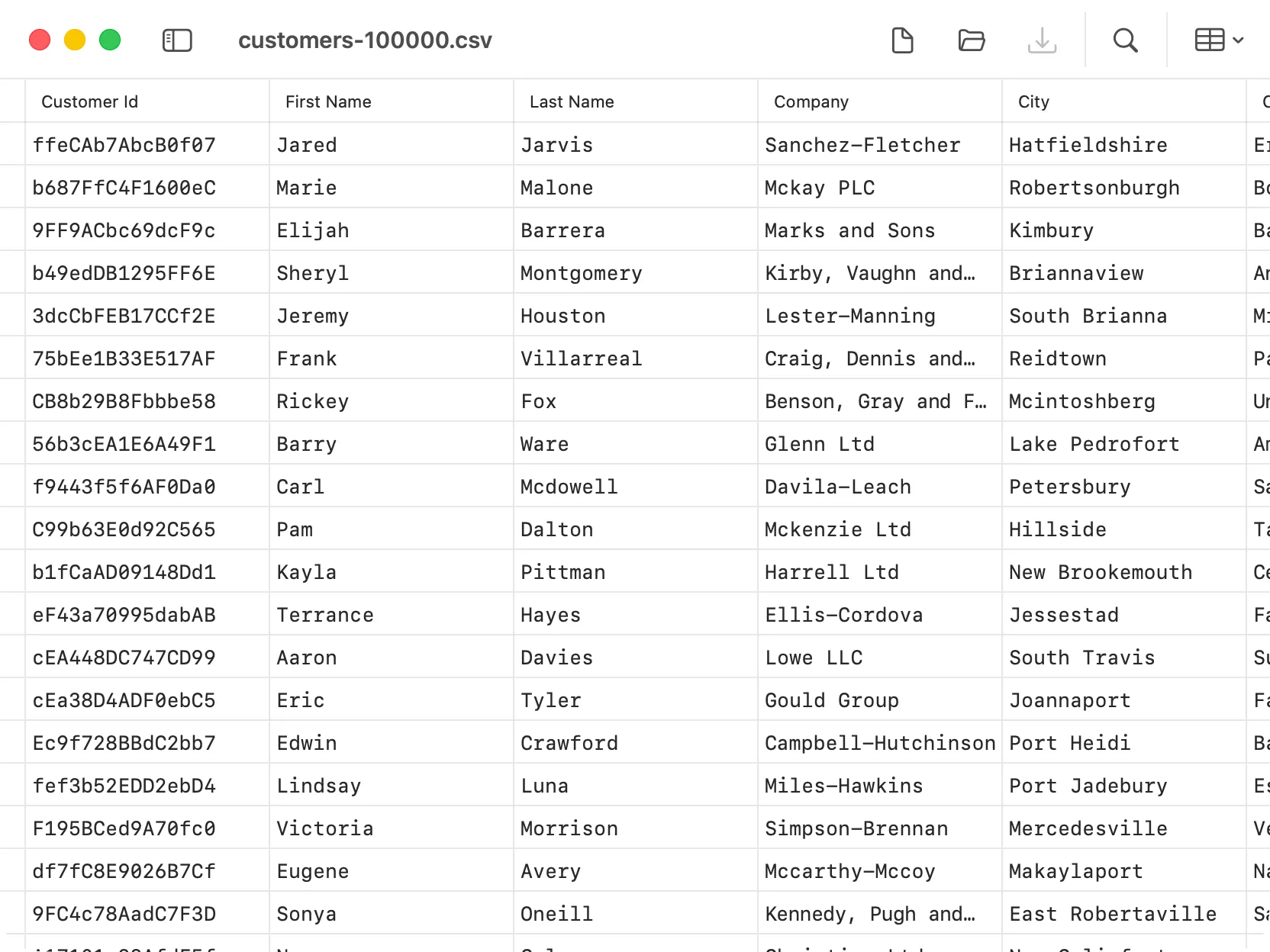
A 100,000-row customer CSV open in DevKnife’s table editor.
With DevKnife’s CSV Editor, you can:
That covers common jobs such as checking downloaded exports, fixing import files, or cleaning test data without turning the file into a full spreadsheet project.
CSV files are plain text, so you can open them in a text editor or inspect them from Terminal. Those options are fast and useful, especially when you only need to look at the raw data.
But when you need to edit rows, fix cells, search values, rename columns, paste a range, or save the file back cleanly, a table view is much more comfortable.
For that everyday middle ground, DevKnife’s CSV Editor gives you a lightweight way to open and edit CSV files on Mac without launching Excel or Numbers.
Convert Unix timestamps to readable dates on macOS using the Terminal, covering both directions, milliseconds, and UTC, plus a faster native option with DevKnife's Time Inspector.
Read More
Fast, private, and built for macOS.