 Simon
Simon
·
Dev Log DevKnife Update 1.11.0
DevKnife 1.11.0 rebuilds the JSON Editor experience with a faster tree view, a new query sidebar, JMESPath support, and direct value editing.
Read MoreIn daily development work, JWTs show up everywhere. You see them in API responses, browser storage, authentication flows, logs, and debugging sessions. At some point, most developers need to inspect one.
The usual approach is simple: copy the token, open a browser tab, paste it into a JWT decoder, and read the payload.
That works, but it is not always a good idea.
If the token came from a real environment, it may contain sensitive claims, internal identifiers, or other information that should stay on your machine. For routine debugging, local tools are usually the better choice.
This post explains what a JWT is, why online decoders can be risky, how to decode a JWT locally in Terminal on macOS, and how to do the same thing in DevKnife.
JWT stands for JSON Web Token. It is a compact string format commonly used for authentication, authorization, and passing claims between systems.
A JWT usually has three parts separated by dots:
It looks like this:
xxxxx.yyyyy.zzzzzThe header usually describes the token type and signing algorithm. The payload contains claims such as a user ID, email, roles, expiration time, issuer, or audience. The signature is used to verify that the token was created by a trusted party and has not been modified.
One important detail: a normal JWT is encoded, not encrypted. That means anyone with the token can often decode the header and payload and read them as JSON. Decoding a JWT is easy. Verifying that it is trustworthy is a separate step.
Online JWT tools are convenient, but they are not always the right choice.
When you paste a token into a website, you may be exposing:
Not every online decoder is malicious, and some do all processing in the browser. The issue is that when you work with tokens from real systems, it is better not to rely on assumptions.
Even if the token only contains metadata, pasting internal authentication data into a third-party webpage is still a habit worth avoiding. Once that becomes routine, it is easier to paste something genuinely sensitive into the wrong place later.
For that reason, decoding JWTs locally on your Mac is usually the safer default.
If you want to inspect a JWT without using a website, you have a few options.
Your Mac already has the tools needed to decode the payload locally.
To decode the payload section of a JWT in Terminal:
echo "eyJhbGciOi..." \ | cut -d '.' -f2 \ | tr '_-' '/+' \ | base64 -DThis command:
If the payload is valid JSON, you will get readable claims in Terminal. This shorter version works for many JWTs, but some tokens may still need Base64 padding before they decode cleanly.
For a quick check, Terminal is fine. For repeated debugging, it becomes inconvenient.
Some limitations are:
Terminal works, but it is not the easiest option for repeated use.
You can also decode JWTs with a small script in JavaScript, Python, or another language you already use.
That approach is flexible and local, but it still adds friction. If you just want to inspect a token during development, opening a script or remembering a custom command is often more work than necessary.
If you inspect tokens regularly, a dedicated local tool is usually easier.
DevKnife includes a built-in JWT Decoder that lets you paste a token and inspect it in a native macOS interface. Instead of splitting the token manually or handling Base64URL details in Terminal, you get a readable result right away.
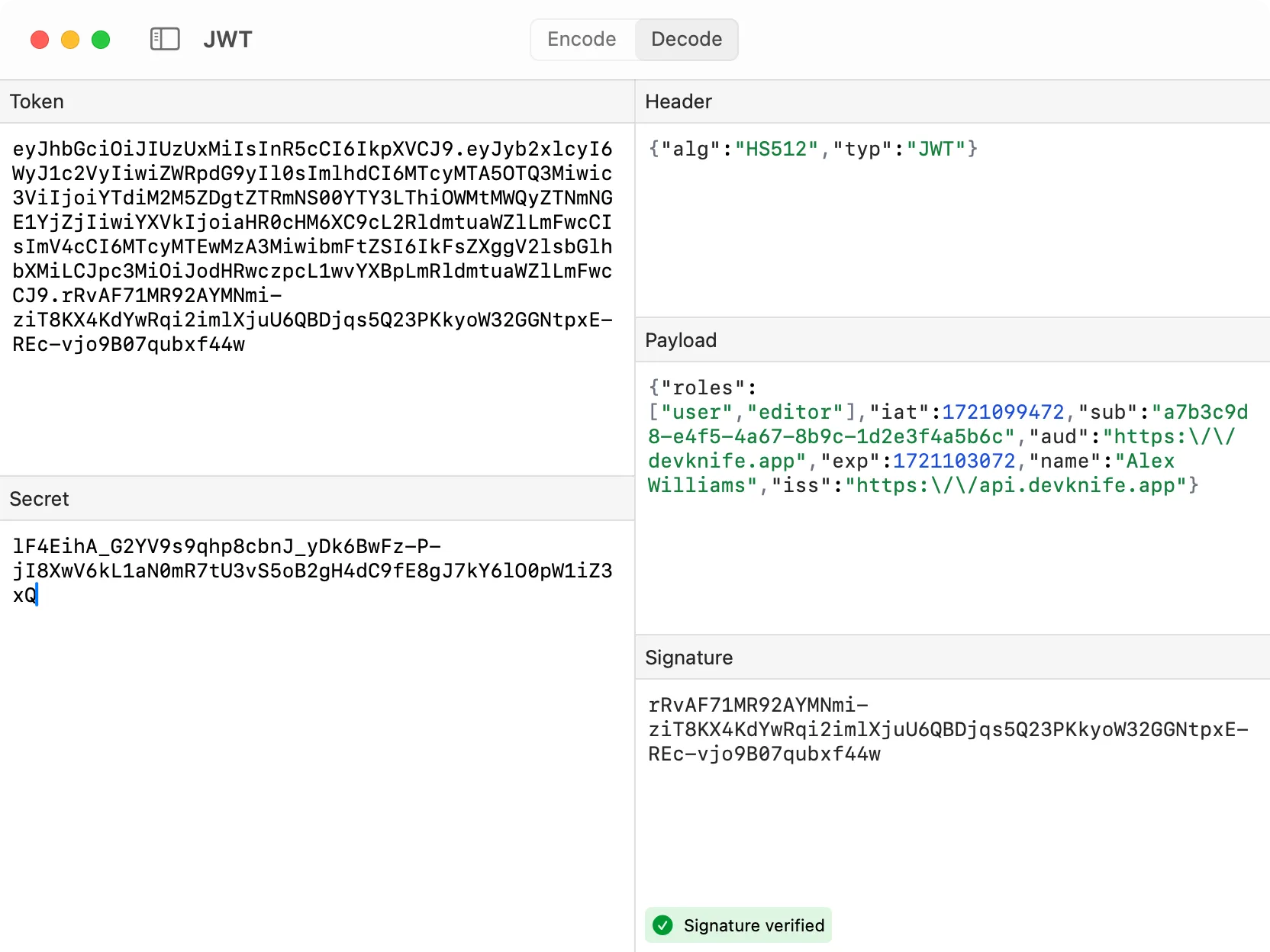
DevKnife’s JWT Decoder showing a decoded token with its header, payload, and validation details.
DevKnife is also not limited to decoding. You can validate the token as well, which is where a dedicated tool becomes more useful than a quick terminal command.
This has a few practical advantages:
JWT decoding is usually not the main task. It is a small step inside a larger debugging session, so it helps when the tool is quick and easy to read.
One important distinction: decoding a JWT only shows what is inside the token. It does not prove that the token is valid, trusted, or correctly signed.
When you decode a JWT, you are reading claims. You are not automatically verifying:
That distinction matters, especially when debugging authentication issues. Decoding helps you inspect the token. Verification is a separate step handled by your application or backend.
JWTs are easy to decode, but the place where you decode them matters.
Pasting tokens into random websites may be convenient, but it is not a strong security habit. Terminal works and keeps everything local, but it is clumsy for repeated use. If you inspect JWTs often, a native local tool is usually the simpler option.
DevKnife gives you a simple way to decode and inspect JWTs on macOS without sending token data anywhere else, and it also lets you validate the token in the same workflow.
DevKnife 1.11.0 rebuilds the JSON Editor experience with a faster tree view, a new query sidebar, JMESPath support, and direct value editing.
Read More
Fast, private, and built for macOS.