 Simon
Simon
·
Dev Log DevKnife Update 1.10.0
DevKnife 1.10.0 introduces multi-window support and improves the JSON Editor with smart formatting and auto-repair.
Read MoreYAML and JSON show up everywhere in modern development. Your CI pipeline is probably YAML. Your Kubernetes manifests are YAML. Your app config might be YAML. But the API you are testing speaks JSON, your logs are JSON, and most tooling expects JSON.
So you end up needing to move data between the two formats constantly: paste a YAML config, get JSON out, tweak it, and sometimes convert it back.
This guide explains how YAML and JSON relate to each other, when you need to convert between them, and how to do it quickly and locally on macOS.
YAML and JSON describe the same kind of data: objects, arrays, strings, numbers, and booleans. In fact, every valid JSON document is also valid YAML. The difference is mostly about how the data looks and who is meant to read it.
JSON uses braces, brackets, and quotes:
{ "service": "api", "port": 8080, "replicas": 3, "tags": ["web", "public"]}YAML uses indentation and is designed to be easier for people to read and write by hand:
service: apiport: 8080replicas: 3tags: - web - publicBoth describe exactly the same data. YAML tends to win for configuration that humans edit often, while JSON tends to win for data that machines exchange.
A few common situations:
The conversion itself is simple. The annoying part is doing it dozens of times a day without breaking your flow.
macOS does not ship with a dedicated YAML converter, but if you have Python 3 installed (it comes with the Xcode Command Line Tools), you can convert in one line.
YAML to JSON:
python3 -c 'import sys, yaml, json; print(json.dumps(yaml.safe_load(sys.stdin)))' < config.yamlJSON to YAML:
python3 -c 'import sys, yaml, json; print(yaml.safe_dump(json.load(sys.stdin)))' < data.jsonThe yaml module is not part of the standard library, so you may first need to install it:
pip3 install pyyamlIf you prefer a dedicated tool, yq works well too:
# Convert YAML to JSONyq -o=json '.' config.yaml
# Convert JSON to YAMLyq -P '.' data.json
Terminal is great if you already have these tools installed and you are comfortable on the command line. The downside is the setup, remembering the exact flags, and that it does not help much when you want to read, tweak, and re-convert the result interactively.
There are plenty of websites that convert YAML to JSON. You paste your data in one box and copy the result from another.
For a quick, throwaway snippet, that is fine. The problems are familiar: you have to leave your editor, search for a converter, pick a random result, and deal with whatever ad-heavy, cookie-banner-covered page you land on.
There is also the data question. CI files, Kubernetes manifests, and app configs often contain hostnames, internal service names, environment details, or secrets. Pasting them into a random website is not something you want to do by habit, even if the conversion itself is harmless.
DevKnife includes a Converter tool that transforms data between JSON, YAML, TOML, XML, and CSV right on your Mac. You paste your YAML or open a file, pick the output format, and the JSON appears instantly in the other panel. Switch the dropdowns and it converts back the other way just as fast.
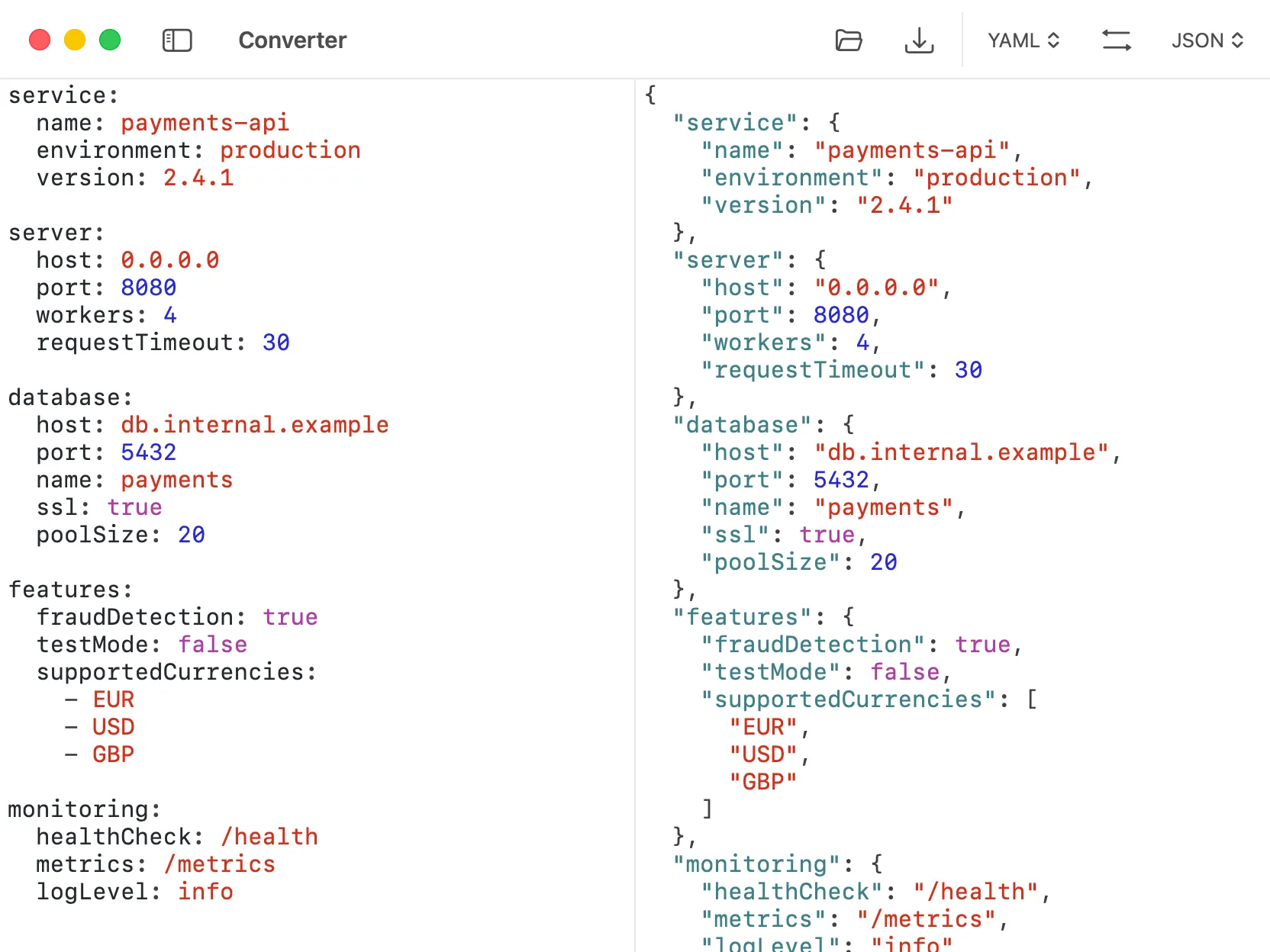
DevKnife’s Converter transforms YAML to JSON locally on your Mac.
You can get data into the tool a few ways:
Once the data is loaded, choose the input and output formats from the dropdowns and the converted result appears automatically. You can then save the output straight to disk without copying it between apps.
Because DevKnife runs natively on macOS, the conversion happens locally. That matters for CI configs, manifests, and anything with internal details, but the everyday win is simpler: no search results, no noisy converter pages, and no browser detour for a small task.
Reach for Terminal when you are already scripting and the tools are installed. Reach for an online converter only for small, non-sensitive snippets when you do not have anything else handy. For everyday back-and-forth between YAML and JSON, a fast local tool keeps the task where it belongs: next to your code.
YAML and JSON are two views of the same data, and developers move between them all day. Terminal can handle the conversion with Python or yq, and online tools work for quick public snippets. For routine work, DevKnife’s Converter gives you instant YAML-to-JSON conversion (and back) without leaving your Mac or your editor flow.
DevKnife 1.10.0 introduces multi-window support and improves the JSON Editor with smart formatting and auto-repair.
Read More
Fast, private, and built for macOS.