 Simon
Simon
·
Dev Log DevKnife Update 1.11.0
DevKnife 1.11.0 rebuilds the JSON Editor experience with a faster tree view, a new query sidebar, JMESPath support, and direct value editing.
Read MoreCSV is the format data arrives in. You export it from a spreadsheet, pull it from a database, or download it from some dashboard. But the moment you want to use that data in code, seed a database, or send it to an API, you usually need JSON instead.
Converting a CSV to JSON sounds trivial, and for clean files it is. But CSV has just enough quirks (quoted fields, commas inside values, headers, type guessing) that a careless conversion can quietly mangle your data.
This guide explains how CSV maps to JSON, where the conversion gets tricky, and how to do it quickly and locally on macOS.
A CSV file is rows of values separated by commas, with the first row usually holding the column names:
id,name,active1,Alice,true2,Bob,falseThe natural JSON shape is an array of objects, one per row, with the header cells as keys:
[ { "id": "1", "name": "Alice", "active": "true" }, { "id": "2", "name": "Bob", "active": "false" }]Notice that every value came across as a string. That is one of the things to watch for: whether you want "1" or 1, and "true" or true. Different tools make different choices here.
A few things that bite people:
"Smith, John" is quoted so the inner comma is not treated as a separator. Naive splitting on commas breaks this.This is why “just split on commas” scripts tend to fail on real-world exports.
If you have Python 3 (it comes with the Xcode Command Line Tools), its built-in csv module handles quoting and escaping correctly, so you do not have to:
python3 -c 'import csv, json, sys; print(json.dumps(list(csv.DictReader(sys.stdin))))' < data.csvcsv.DictReader uses the first row as keys and produces one object per row, exactly like the JSON shape above. Every value stays a string, which is usually the safe default.
If you want pretty-printed output:
python3 -c 'import csv, json, sys; print(json.dumps(list(csv.DictReader(sys.stdin)), indent=2))' < data.csvTerminal is a solid option when the file is already on disk and you are comfortable on the command line. It is less convenient when you want to glance at the data, fix a stray value, and re-convert without writing a script each time.
Plenty of websites convert CSV to JSON. You paste or upload the file and copy the result.
For a small, public sample, that is fine. But CSV exports are very often the kind of data you should not paste into a random website: customer lists, user records, analytics exports, internal reports. Uploading that to an unknown page just to reshape it into JSON is a real privacy and compliance risk, not just an annoyance.
And the usual friction still applies: leaving your editor, searching for a converter, and working through an ad-cluttered page for what should be a one-step task.
DevKnife includes a Converter tool that transforms data between CSV, JSON, YAML, TOML, and XML right on your Mac. You drop in a CSV, pick JSON as the output, and the converted array appears instantly in the other panel.
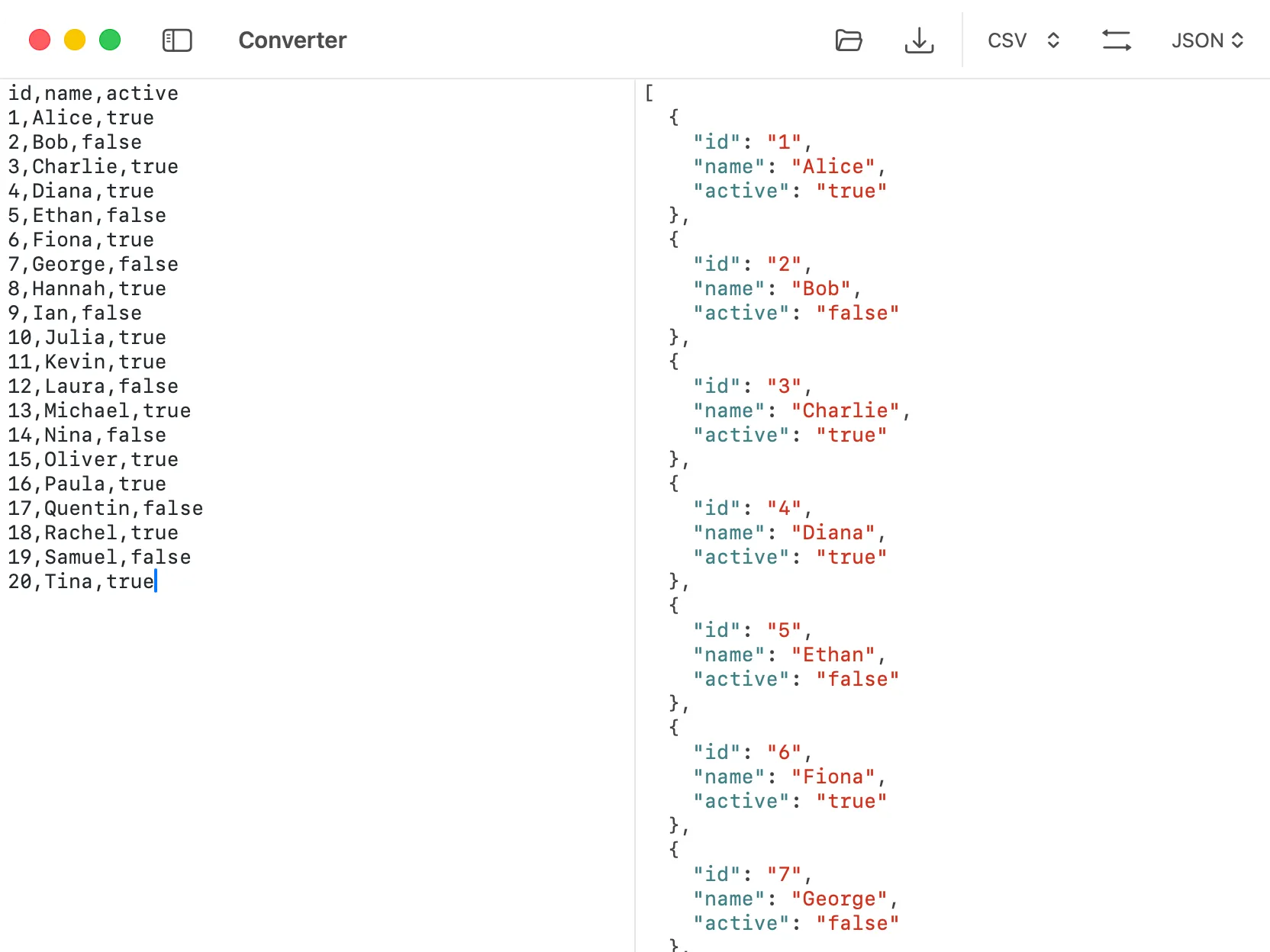
DevKnife’s Converter transforms CSV to JSON locally on your Mac.
You can load your data a few ways:
.csv file onto the input area.Pick CSV as the input format and JSON as the output, and the result appears automatically. From there you can save it straight to disk. Since DevKnife parses the CSV properly, quoted fields and embedded commas come across intact rather than splitting your rows.
Because everything runs natively on macOS, the conversion stays on your machine. For CSV exports full of real records, that is exactly where it should stay.
Use Terminal when the file is already on disk and you are scripting anyway. Use an online converter only for tiny, non-sensitive samples. For real exports, especially anything with personal or internal data, keep the conversion local with a tool built for it.
Converting CSV to JSON is easy when the file is clean and risky when it is not. Python’s csv module handles the edge cases well from Terminal, and online tools work for harmless samples. For everyday exports, DevKnife’s Converter turns CSV into JSON instantly and locally, so your data never leaves your Mac.
DevKnife 1.11.0 rebuilds the JSON Editor experience with a faster tree view, a new query sidebar, JMESPath support, and direct value editing.
Read More
Fast, private, and built for macOS.