 Simon
·
Dev Log DevKnife Update 1.3.0
DevKnife 1.3.0 adds Dark Mode, new Text Inspector and IndexNow tools, improved editor performance and other fixes.
Read MoreSometimes you just want to know how large a project has become. Maybe you are curious about the mix of languages, want to compare two projects, or are checking how much code is hiding inside an old repository.
Counting lines sounds simple, but the result depends on what you count. A basic command can count every line in every file, including comments, blank lines, generated code, and dependencies. A more useful result separates those categories and focuses on the source files you actually wrote.
This guide covers three ways to count lines of code on a Mac: a built-in Terminal command, the cloc command-line tool, and DevKnife’s visual Code Statistics tool.
There is no single universal line count for a project. Source-aware counting tools often divide files into a few categories:
A physical line count is useful for getting a rough idea of project size, but it is not a measure of code quality or developer productivity. Ten clear lines can be better than one clever line, and the same feature may take very different amounts of code in Swift, Python, or C++.
The scope matters too. If the scan includes node_modules, build output, generated files, or vendored libraries, the total can say more about your dependencies than your own project.
wcmacOS includes the wc command, which can count lines, words, and characters in a file.
To count the lines in one Swift file, open Terminal and run:
wc -l ContentView.swiftThe number on the left is the raw line count for the file. It includes code, comments, and blank lines. Technically, wc -l counts newline characters, so a final line without a newline may not be included.
You can combine find and wc to count several file types in a project. For example, this command counts Swift and Objective-C files in the current folder and its subfolders:
find . -type f \( -name '*.swift' -o -name '*.m' -o -name '*.mm' \) -print0 \ | xargs -0 wc -lThe final total shows the combined line count. Change the filename patterns when you need to count another language.
This method is already available on every Mac and works well for a quick check. Its limitation is that it does not understand the source code. It cannot separate code from comments or blank lines, group the result by language, or automatically avoid dependency and build folders.
cloccloc is a command-line tool made specifically for counting source code. It recognizes many programming languages and reports files, blank lines, comments, and code separately.
If you use Homebrew, install it with:
brew install clocMove to your project folder and scan it:
cd /path/to/projectcloc .The result is grouped by language, followed by totals for the whole project.
For more control, you can exclude folders that should not be part of the count:
cloc --exclude-dir=node_modules,Pods,DerivedData,build,dist,vendor .cloc is a good choice when you work in Terminal, want a detailed report, or need to repeat the count in a script. It is also flexible, but that means you should check the scan scope and exclusion options before comparing results between projects.
DevKnife includes a Code Statistics tool for scanning a project without installing a command-line utility or building a long shell command.
To scan a project:
The summary shows the number of files and the totals for code, comments, blank lines, and all lines. A table below groups those values by language, making it easier to see what the project is made of.
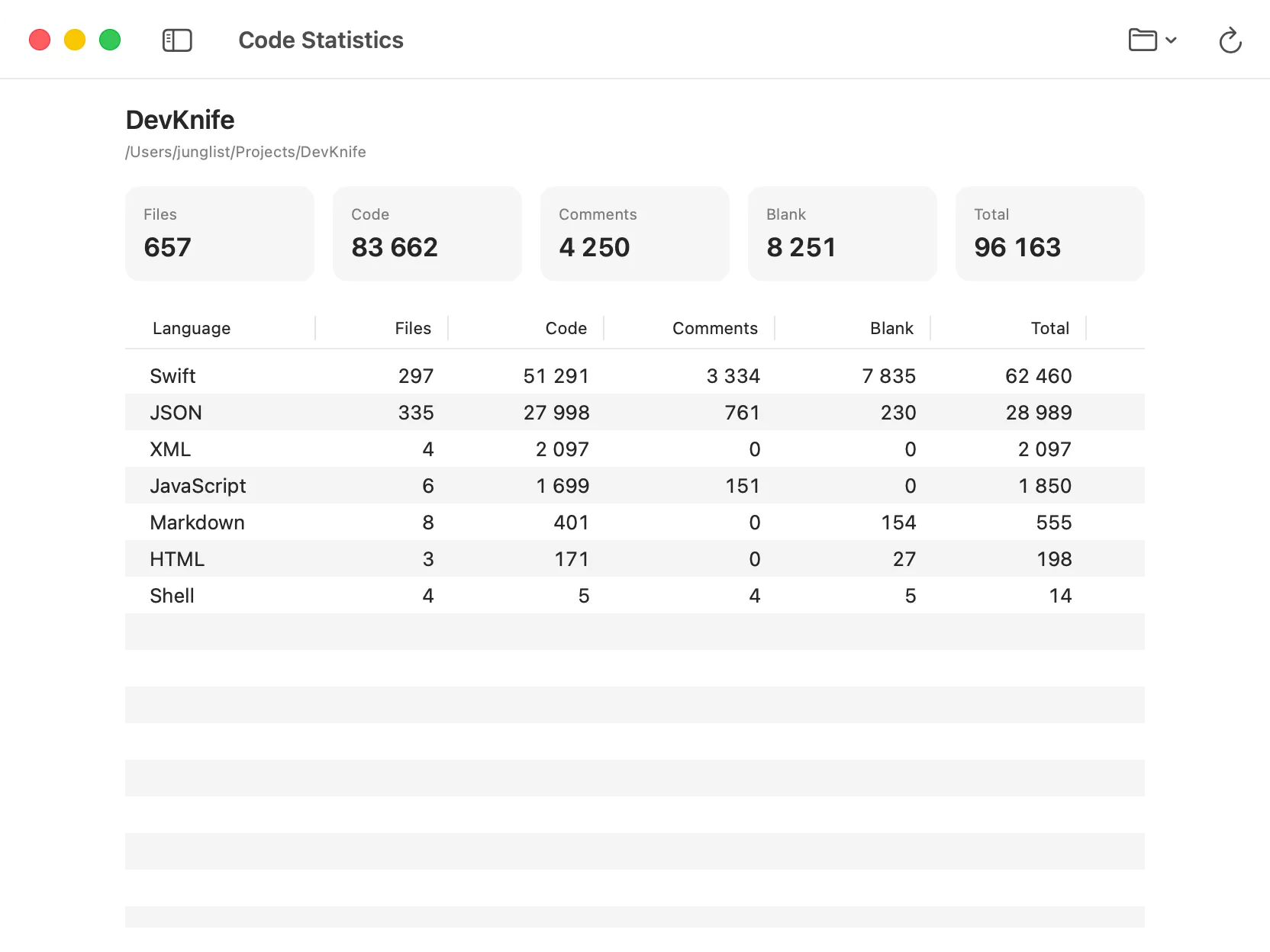
DevKnife’s Code Statistics showing project totals and a breakdown by language.
DevKnife automatically skips common dependency and build folders such as .git, node_modules, Pods, DerivedData, build, dist, and vendor. It also ignores hidden files, symbolic links, binary files, common lock files, source maps, minified JavaScript and CSS, and files larger than 20 MB.
Recent project folders stay available in the Open Folder menu, and you can use Refresh after the code changes. The scan runs locally on your Mac. DevKnife does not upload your source files or the resulting statistics.
Read more about Code Statistics in the DevKnife documentation.
Do not be surprised if wc, cloc, and DevKnife return different totals for the same project.
The tools may:
This does not necessarily mean that one result is wrong. It usually means that the tools are measuring slightly different things. When comparing projects or tracking growth over time, use the same tool and the same exclusions each time.
Use wc -l when you need a quick total for one file or a small set of known files. Use cloc when you want a scriptable command-line report with detailed options.
Use DevKnife when you want a readable overview without configuring a command, especially when you want to see the language breakdown and return to the same project later.
Counting lines of code can give you a useful overview of a project, as long as you understand what the number includes. A raw line count is quick, while a source-aware tool gives you a clearer split between code, comments, blank lines, and languages.
The built-in wc command is enough for simple checks, and cloc is a capable choice for Terminal workflows. For a visual result with common dependencies and build output filtered automatically, DevKnife’s Code Statistics brings the same information into a native Mac interface.
DevKnife 1.3.0 adds Dark Mode, new Text Inspector and IndexNow tools, improved editor performance and other fixes.
Read More
Fast, private, and built for macOS.