 Simon
Simon
·
Dev Log DevKnife Update 1.18.0
DevKnife 1.18.0 adds Code Statistics, a Certificate Inspector, edge snapping in the Ruler tool, and a YAML-to-JSON conversion fix.
Read MoreBase64 images show up in more places than you might expect. You may see them inside HTML emails, small CSS backgrounds, API payloads, JSON documents, browser storage, test fixtures, or quick prototypes where keeping everything in one file is convenient.
Instead of referencing an image file by URL, Base64 turns the image bytes into text. That text can then be embedded directly into HTML, CSS, JSON, or another plain-text format.
It is useful, but it is also easy to misuse.
This guide explains what Base64 image encoding is, when it makes sense, when it does not, and how to convert images to and from Base64 locally on macOS.
A Base64 image is an image represented as text. The raw binary data from the image file is encoded into a long string using the Base64 format.
In HTML, it often looks like this:
<img src="data:image/png;base64,iVBORw0KGgoAAAANSUhEUgAA..." />In CSS, you might see it used like this:
.icon { background-image: url("data:image/svg+xml;base64,PHN2ZyB4bWxucz0i...");}The data:image/png;base64, part tells the browser what kind of data it is reading. The long string after that is the encoded image.
Base64 encoding can be handy when the image is small and you want to keep everything self-contained.
Common examples include:
For these cases, Base64 can reduce setup and make the data easier to move around. You can copy one text value instead of keeping a separate image file next to your code.
Base64 is not a general replacement for normal image files.
Encoded images are usually larger than the original file, often by roughly one third. They are also harder to cache separately, harder to inspect by eye, and can make HTML, CSS, or JSON files difficult to read when the encoded string is long.
For normal website images, product screenshots, photos, and large assets, a regular image file is usually the better choice. Use Base64 for small, specific cases where embedding the image directly is worth the tradeoff.
macOS includes a built-in base64 command, so you can encode an image without installing anything. One catch: the BSD version on macOS expects the input file via -i, not as a plain argument. Copy a Linux example like base64 image.png and you’ll just get invalid argument.
Encode an image to Base64:
base64 -i image.pngSave the encoded string to a text file:
base64 -i image.png -o image-base64.txtBuild a ready-to-paste data URL and copy it to the clipboard. This is usually what you actually want for HTML or CSS — the full data:image/png;base64,... value, not just the raw encoding:
echo "data:image/png;base64,$(base64 -i image.png)" | pbcopySwap image/png for image/jpeg, image/svg+xml, or image/gif to match your file.
Decode a Base64 string back into an image:
base64 -D -i image-base64.txt -o image.pngThe -D flag means decode; as with encoding, pass the input with -i and the output with -o.
The base64 command is reliable and completely local, which is great for a one-off. The friction shows up when you do this repeatedly: you have to remember the macOS-specific flags, assemble the data URL prefix yourself, and set the right MIME type. And it gives you nothing to look at — there’s no way to confirm that an encoded image is correct or that a decoded one still renders.
If you convert images often, DevKnife includes a Base64 Image tool that keeps the whole round trip in one place. Drop in an image and you get the Base64 string with the data URL prefix ready to copy; paste in Base64 data and you see the decoded image rendered back.
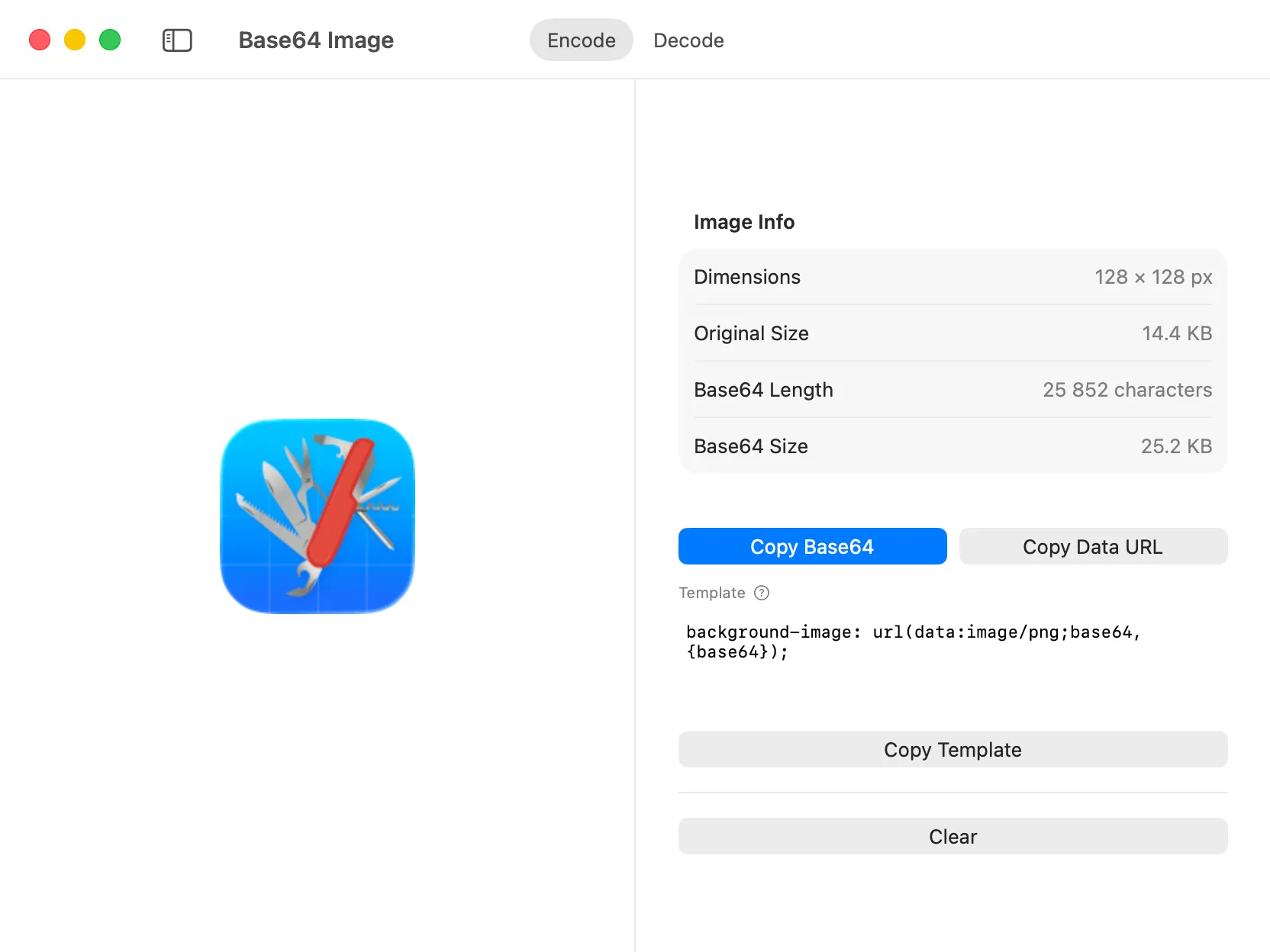
DevKnife’s Base64 Image tool converts images to Base64 and decodes Base64 image data locally on your Mac.
This is useful when you need to:
There’s also a template field. You write the line you want once, putting {base64} where the encoding should go — the default is background-image: url(data:image/png;base64,{base64}); — and Copy Template fills in the placeholder, so you get the finished CSS or HTML line instead of building the data URL by hand.
Because DevKnife runs natively on your Mac, the conversion happens entirely on your machine — a small bonus when the asset isn’t public.
Use Base64 images when the asset is small and embedding it directly removes friction. Avoid Base64 when the image is large, reused across many pages, or should benefit from normal browser caching.
For example, embedding a tiny icon in a one-off HTML email can be reasonable. Encoding a full-size screenshot or product image into a CSS file usually is not.
The best workflow is not to use Base64 everywhere. It is to have a fast local tool ready for the moments when Base64 is exactly the right format.
Base64 image encoding is a useful developer trick, especially for small embedded assets, API testing, and self-contained prototypes. But it comes with tradeoffs, so it works best when used deliberately.
For an occasional conversion, the built-in base64 command is all you need. When you find yourself encoding, decoding, and visually checking images regularly, that’s where DevKnife’s Base64 Image tool saves the back-and-forth — convert images to Base64, decode them back, and see the result, all on your Mac.
DevKnife 1.18.0 adds Code Statistics, a Certificate Inspector, edge snapping in the Ruler tool, and a YAML-to-JSON conversion fix.
Read More
Fast, private, and built for macOS.